
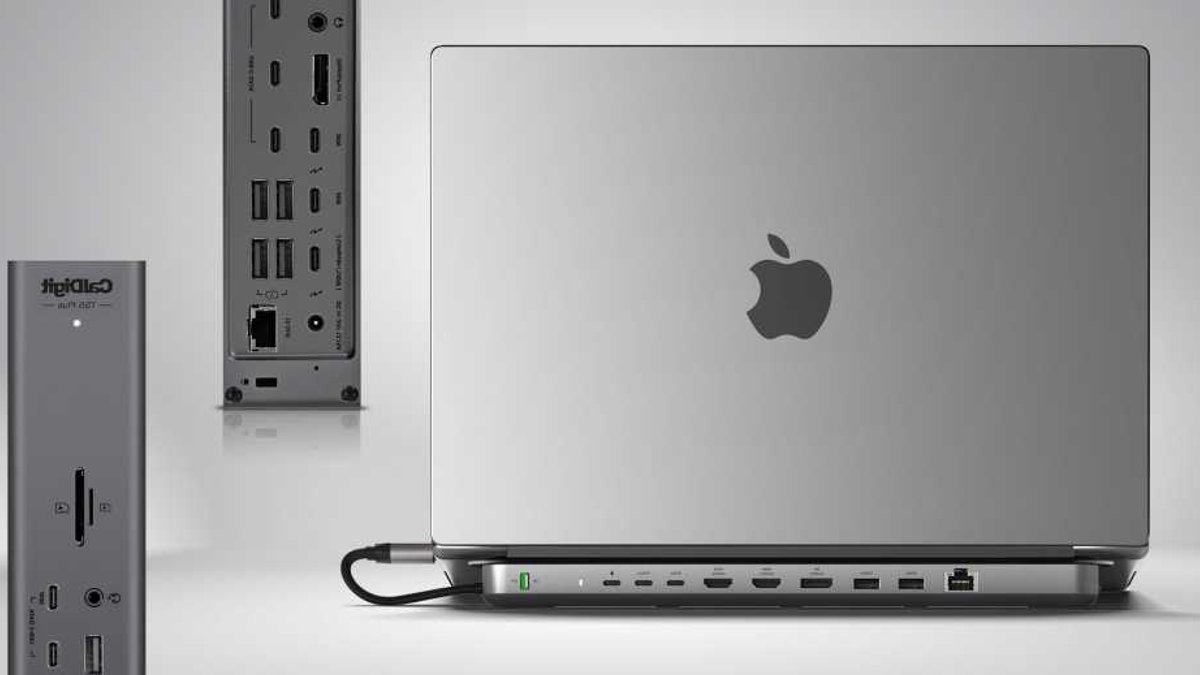
Plug your MacBook in and out of a multi‑port laptop docking station to swiftly add multiple devices and external displays with just one cable connection to your laptop. We tested the top contenders to find the best Thunderbolt and USB‑C docks available to owners of the MacBook Air and MacBook Pro. MacBook Neo users can use any of these docks but are limited to a 10 Gbps bandwidth and some display limitations.
Related: Apple’s Deja Vu as Samsung Was Wrong Again
Thunderbolt, USB4 or USB‑C The connectors all look the same (technically known as a “Type‑C connector”), but there are significant differences, particularly on speed that will determine both data‑transfer rate and higher external display refresh rates. Our list Which ports does my MacBook have will show you how many USB‑C or more likely one of Thunderbolt 3, 4 or 5 that you have. While a Thunderbolt 4 (TB4) dock will be enough for most casual users, if you can stretch the budget go for a TB5 dock as it will remain current for years, saving you money in the long term, and is backwards compatible with earlier versions and all the way back to USB‑C. High‑end professionals should always aim for Thunderbolt 5. The dock needs one (“upstream”) Thunderbolt or USB‑C port for connecting to and charging your laptop (although all recent MacBooks can also power via the MagSafe 3 port), and at least another (“downstream”) to attach further devices (hard drives, external display, and others). The USB‑C MacBook Neo has just the one data port, with the other reserved for charging. A dock with Power Delivery will greatly expand the entry‑level Mac laptop. For more detail, read our Thunderbolt 5 vs Thunderbolt 4 vs Thunderbolt 3 vs USB4 explainer.
Add external displays to your MacBook If you use your laptop as your principal computer, attaching at least one larger display to create a hybrid desktop/laptop setup, with a keyboard and mouse, will boost your productivity. You can turn that 13‑in MacBook’s cramped screen real‑estate into an iconic iMac‑sized 27‑in or even larger screen by adding an extra display—or connect two or even four large monitors to extend your screen across your whole desk. Take a look at our recommended best monitors and displays for Mac and also the best portable monitors for Mac. You’ll get two or more Extended mode screens (where the screen extends beyond what you can see on the laptop screen) using a Thunderbolt connection (or DisplayPort/HDMI). Natively over mere USB‑C, Macs can connect to only one external display in Extended mode, as opposed to Mirrored mode (which replicates exactly what you get on the laptop screen) but DisplayLink is third‑party software that allows some docks to extend to up to four screens on even the most basic Mac. DisplayLink‑supporting docks are also the only way that non‑Pro/Max M1 and M2 MacBooks can connect more than one external display.
Related: Top power banks for MacBooks this year
Do I need a docking station? With three TB4 or TB5 and an HDMI port, a MacBook with a Max chip could connect to up to four external displays without the need for a dock, although such a power user would likely require extra Thunderbolt and other ports for more devices to make up for using all the laptop ports for multiple monitors. See below our list of recommended docking stations for more detail on the external display options with each recent MacBook. All docks come with a bunch of USB ports: some old‑school USB‑A and newer, more capable USB‑C. MacBook Pros also have an SD card reader. Although this card reader is rated as UHS‑II (312 MBps), Apple has pegged it back at 250 MBps, so for the fastest speeds (and a microSD slot if you need one), a dock will likely be a better choice for memory‑card use if it is rated at UHS‑II rather than UHS‑I (104 MBps). MacBooks also lack wired Internet access via an Ethernet port, so if you want to escape flaky Wi‑Fi, buy a dock with at least Gigabit Ethernet.
Related: Galaxy Z Fold 8 Ultra Crease Finally Improved
Future‑proofing and compatibility Thunderbolt 5’s backward compatibility means today’s docks will work with tomorrow’s MacBooks, but not all features will be available. A Thunderbolt 5 dock connected to a Thunderbolt 4 Mac, for example, will operate at 40 Gbps instead of 80 Gbps. Similarly, MacBook Neo users are limited to 10 Gbps bandwidth and a single external display, regardless of the dock’s capabilities.


